

Plan a Trip With Chrome Tab Groups
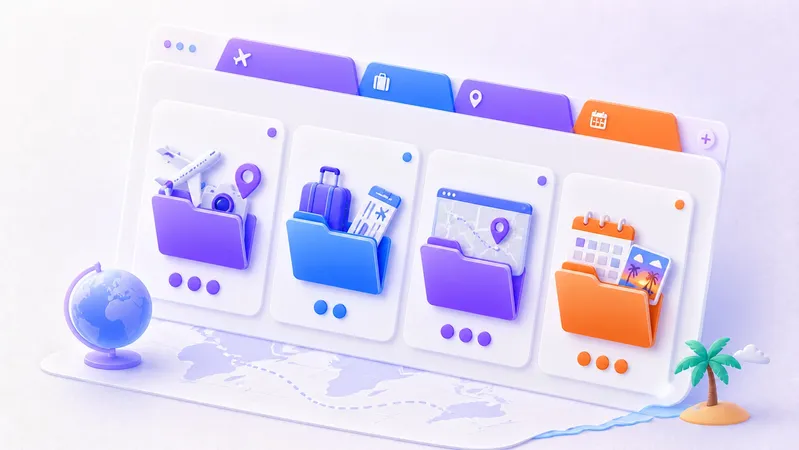
You can plan a trip with Chrome tab groups by separating choices from commitments. Flight comparisons belong in one group. Confirmed bookings belong in another. Entry requirements, ground transport, and local ideas each need a clear place too. This keeps a promising hotel from looking like one you already paid for.
The browser is good at collecting options. It is not your final itinerary or document vault. Use groups and saved Collections for research, then keep confirmation numbers, identity documents, and emergency details in an appropriate secure place.
Create four groups before you search
Set up the structure before opening ten versions of the same route.
"Compare" holds flights, stays, and activities you are still considering.
"Booked" holds official pages for confirmed plans.
"Logistics" covers entry rules, transport, weather, and practical details.
"Local" holds maps, restaurants, and things you may do.
Chrome lets you add tabs to named, colored groups and collapse groups you are not using. Google's tab group instructions cover those controls. Use colors only as a quick cue. The group name should carry the meaning.
Keep "Compare" expanded while researching. Collapse "Booked" so you do not accidentally treat a confirmed reservation as another option. If you are planning several cities, add the city to the group name rather than depending on color alone.
Make comparison tabs answer one question
Travel searches spread when each tab answers a different question. One hotel looks cheapest, another has a better location, and a third includes breakfast. Decide what you are comparing before you open more pages.
For a hotel, you might compare total price, cancellation terms, location, and the room that is actually available for your dates. For transport, compare the full journey, including transfers and arrival time. Close any option that fails a requirement you will not change.
Do not use the tab title as proof of a price or policy. Recheck the official booking page before paying. Prices, availability, schedules, and entry rules can change.
Once you choose, move the official page into "Booked" and close the rejected options. Record the confirmation in your itinerary or travel app. This stops the comparison group from preserving decisions you have already made.
Put official requirements in logistics
For international travel, use current official sources. The U.S. Department of State's travel planning page directs U.S. travelers to country information, travel advisories, passport guidance, and a travel checklist. Travelers from other countries should also check the relevant authorities for their nationality and destination.
Keep official entry, passport, visa, and health requirement pages in "Logistics." Label unofficial guides as background reading, not instructions. Check the official pages again near departure because requirements can change after you first plan.
Airport preparation belongs here too. The Transportation Security Administration publishes a printable travel checklist for U.S. screening preparation. For travel elsewhere, use the airport and security authority that applies to your route.
You do not need every travel article you read. Keep the pages that affect a decision or action. Close general inspiration once it has served its purpose.
Save the planning session between decisions
A trip may take several sessions to plan. At the end of each one, save the window as a Tabox Collection. Tabox preserves the tabs and native Chrome tab groups, including their names and colors, so the research structure can return later.
Name the Collection with the trip and current decision: "Lisbon October: choose neighborhood" is more useful than "Vacation." Before saving, close expired offers and duplicate search results. Then close the travel tabs so they do not occupy every workday until departure.
This guide to saving Chrome tab groups and restoring them later covers the same save-and-close step in detail.
If the trip has several parts, create separate Collections for flights, accommodation, and local plans, then place them in one Tabox folder. Tab folders for Chrome are useful when one giant Collection would be hard to scan.
Share research without sharing private details
Travel planning often involves another person. Before sharing browser context, remove payment pages, account dashboards, confirmation numbers, and any page with personal data.
A plain list of public links may be enough for comparing three hotels. Tabox also supports sharing Collections, but creating shares is a Tabox Pro feature. A recipient can view a shared Collection in read-only mode without Pro.
Send one focused set, not the entire trip window. Add a clear question such as "Which of these two neighborhoods works better?" A smaller set is easier to review and less likely to include a private page by mistake.
The guide to sharing Chrome tab groups explains how to prepare a useful share.
Review at three checkpoints
Open the saved trip Collection when you reach a decision, one week before departure, and shortly before leaving. At each checkpoint, verify the details that can change.
Confirm schedules and booking status through the provider. Recheck official entry guidance and local transport notices. Remove old comparison tabs after the decision is final. Make sure essential confirmations exist outside the browser and are available in the way you expect while traveling.
After the trip, delete short-lived Collections or trim them to places you genuinely want to remember. A clean archive is more useful than a permanent copy of every fare search.
FAQ
What is the best way to group travel tabs?
Separate unconfirmed options, confirmed bookings, logistics, and local ideas. Add a city or date to the name when a trip has several stops.
Can Chrome tab groups replace a travel itinerary?
No. Groups organize research pages. Keep confirmation details, times, addresses, and documents in a reliable itinerary or secure storage system.
Can I save all my travel groups at once?
Yes. Tabox can save the tabs and native groups in a window as a Collection. You can reopen that Collection for the next planning session.
Is sharing a Tabox Collection free?
Creating a share requires Tabox Pro. A person receiving a shared Collection can view it in read-only mode without Pro.
Open your current travel window, create the four groups, and save the cleaned session as one Tabox Collection before you close it.
Tame your tabs with Tabox. Free forever.


Keep reading
- Chrome Tab Workspaces for Consultants: A practical browser workflow for consultants who move between clients, research, deliverables, and recurring tools.
- Share Onboarding Tabs With New Hires: Build a useful first-week browser workspace without asking a new hire to reconstruct every tool and reference page.
- Organize Lesson Planning Tabs in Chrome: A simple system for keeping lesson resources, grading tools, and school admin work in separate browser contexts.