

Can Chrome Remember Groups? What It Saves
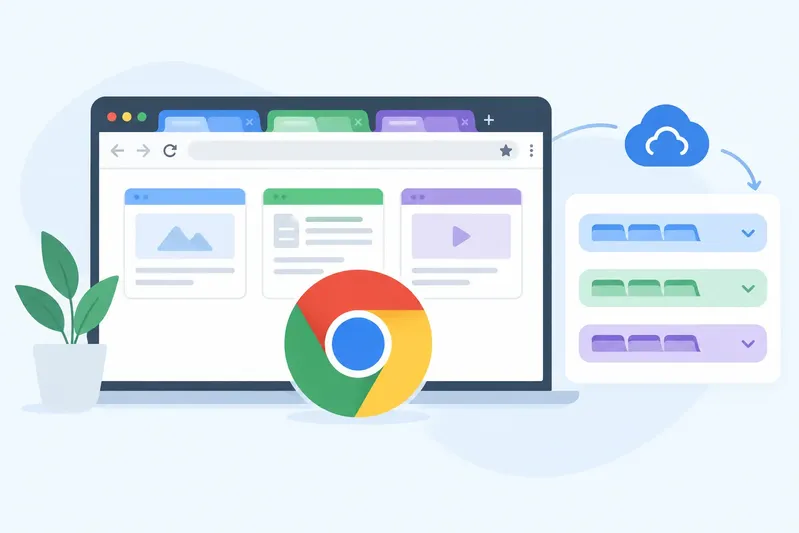
You finish a project for the day with three color-coded groups open: client notes, competitor pages, and a dozen tabs you still need tomorrow. The practical question is: can Chrome remember groups when you close the browser, restart your computer, or move to another device?
The answer is yes, but only under certain conditions. Chrome can keep tab groups open during a session and can save groups for later access. However, its built-in system is not designed to be a complete project archive. If your work depends on being able to close, organize, and instantly reopen groups of tabs, the difference matters.
Can Chrome Remember Groups After You Close It?
Chrome may remember tab groups after you close the browser, but the result depends on how the group was created and how Chrome is set up.
A regular, unsaved tab group is mostly tied to your active browser session. If Chrome is configured to continue where you left off, your open windows, tabs, and groups can reappear after a restart. This is useful for short-term continuity, such as picking up where you left off the next morning.
But session restoration is not the same as saving a group. It depends on your startup settings and the state of your last browsing session. If you close tabs individually, use a new browser profile, clear browsing data, experience a crash, or open Chrome with a different startup option, the group may not return in the way you expect.
For work that needs to survive beyond one browser session, use Chrome's saved tab groups feature rather than relying on the browser to restore everything automatically.
How Chrome Saved Tab Groups Work
When you create a tab group in Chrome, you can give it a name and color. In supported versions of Chrome, selecting the group name opens its menu, where you can turn on Save group.
Once saved, the group becomes easier to find again after you close its tabs. Chrome typically keeps the saved group available from the bookmarks bar area, where selecting it reopens the tabs in that group. This is a meaningful improvement over leaving dozens of tabs open just because you may need them later.
Saved groups can also sync when you are signed in to Chrome and have syncing enabled. That means a group saved on one computer may be available on another device using the same Chrome profile. Availability can vary by Chrome version, device type, and which sync settings are enabled, so it is worth checking with a small test group before depending on it for critical work.
The key distinction is simple: an open tab group helps you organize the tabs you are using now. A saved tab group gives Chrome a reference you can reopen later.
What Chrome Keeps in a Saved Group
Chrome generally saves the group name, its assigned color, and the tabs inside it. If you close the group, you can reopen those tabs together instead of reconstructing the set from browsing history.
That works well for a limited number of active collections. For example, you might save a group called “Website refresh” with your CMS, design references, analytics dashboard, and pages to review. When the task returns, you can reopen that set instead of searching for each page again.
Chrome's saved group feature is best thought of as a lightweight recall tool. It preserves the set of browser tabs, but it does not provide much structure around the set.
What Chrome Does Not Organize Well
Chrome does not give saved tab groups a full project workspace. As the number of groups grows, the bookmarks bar can become crowded. There is limited room to sort projects into folders, add meaningful context, maintain a visual library of old sessions, or distinguish between current work and reference material you may need next quarter.
There is also a practical issue with change over time. A group that begins as five tabs can become 25. A few saved groups can become a long row of similarly named items. Chrome helps preserve the tabs, but it does not do much to help you manage an expanding archive of tab-based work.
Why Session Restore Is Not a Reliable Backup
Many people assume that if Chrome reopens their tabs after a restart, those tabs are safely stored. That assumption creates problems when a browser window is closed at the wrong time or a cleanup action removes the session data you expected Chrome to retain.
Session restore is intended to restore your recent working state. It is not a backup system for your projects. It can be affected by Chrome startup preferences, updates, profile changes, and browser maintenance. It also leaves you with the same clutter you were trying to solve: every project stays open because closing it feels risky.
A better approach is to deliberately save a completed or paused work context, then close it. Your browser stays lighter, and the tabs remain retrievable when the project needs attention again.
When Chrome Groups Are Enough
Chrome's built-in groups are a good fit when you need quick visual separation inside one busy window. They are especially useful for keeping a few current tasks distinct, such as “Today,” “Waiting,” and “Read later.” Color and labels make it easier to scan a crowded tab strip without changing how you browse.
They are also enough when your groups are temporary. If you are comparing products, planning a purchase, or gathering pages for a short task, create a group, save it if needed, and remove it once the task is complete.
The trade-off appears when tabs become a working library. If you regularly switch among multiple client projects, recurring research topics, personal planning, and reference collections, a flat set of saved Chrome groups becomes harder to maintain. You need organization beyond one row in the browser.
A Better Way to Keep Tab Projects Ready
Treat open tabs as active work and saved collections as project storage. That one shift prevents your browser from becoming a permanent parking lot for unfinished tasks.
Start by grouping tabs around a real context, not a vague category. “Marketing” is likely too broad. “Q3 campaign landing page” tells you exactly why those tabs belong together. Name groups so that future you can tell whether to reopen them in two seconds.
When you pause a project, save the whole set before closing it. Avoid relying on a single open window as your only copy. For anything you expect to return to repeatedly, store the group in a place where it can be organized with related work.
A dedicated tab manager can make this step much more practical. Tabox, for example, lets you save groups of browser tabs as organized collections, place them in folders, use colors for quick scanning, and reopen a full project in one click. It also supports tab groups, Google Drive sync, and file exports, giving you options beyond a browser session or a single device.
That distinction is useful for people who work with 20 or more tabs at a time. Instead of keeping every project open, you can close finished contexts confidently and bring back only the tabs needed for the task in front of you.
Check These Settings Before You Rely on Chrome
If Chrome groups are part of your daily workflow, confirm that you are signed into the correct Chrome profile and that sync is enabled for the data you want carried across devices. Then create a small saved group, close it, restart Chrome, and reopen it. This takes less than a minute and shows you how your current setup behaves.
Also review Chrome's startup setting. “Continue where you left off” can be useful, but it should support your workflow rather than become the only reason you can find a project again. Consider it a convenience feature, not long-term storage.
Finally, keep group names specific and remove outdated sets. Saving every temporary tab collection creates a different kind of clutter. A smaller library of clearly named projects is faster to search, easier to trust, and more likely to be used.
Chrome can remember groups, particularly when you save them, but its built-in feature works best for a manageable number of active sets. When tab groups represent real projects, give them a home you can organize, back up, and reopen without keeping your entire workload pinned to one browser window.
Tame your tabs with Tabox. Free forever.


Keep reading
- 7 Best Alternatives to Tab Bookmarks for Chrome: Compare the best alternatives to tab bookmarks for saving tab sessions, organizing active projects, syncing work, and...
- Browser Workspace Tool Review for Busy Tabs: This browser workspace tool review explains how to save tab sessions, organize projects, sync safely, and reopen the...
- Can Browser Tabs Be Encrypted? What to Know: Can browser tabs be encrypted? Learn what browsers protect, where tab data remains exposed, and how to save active...